
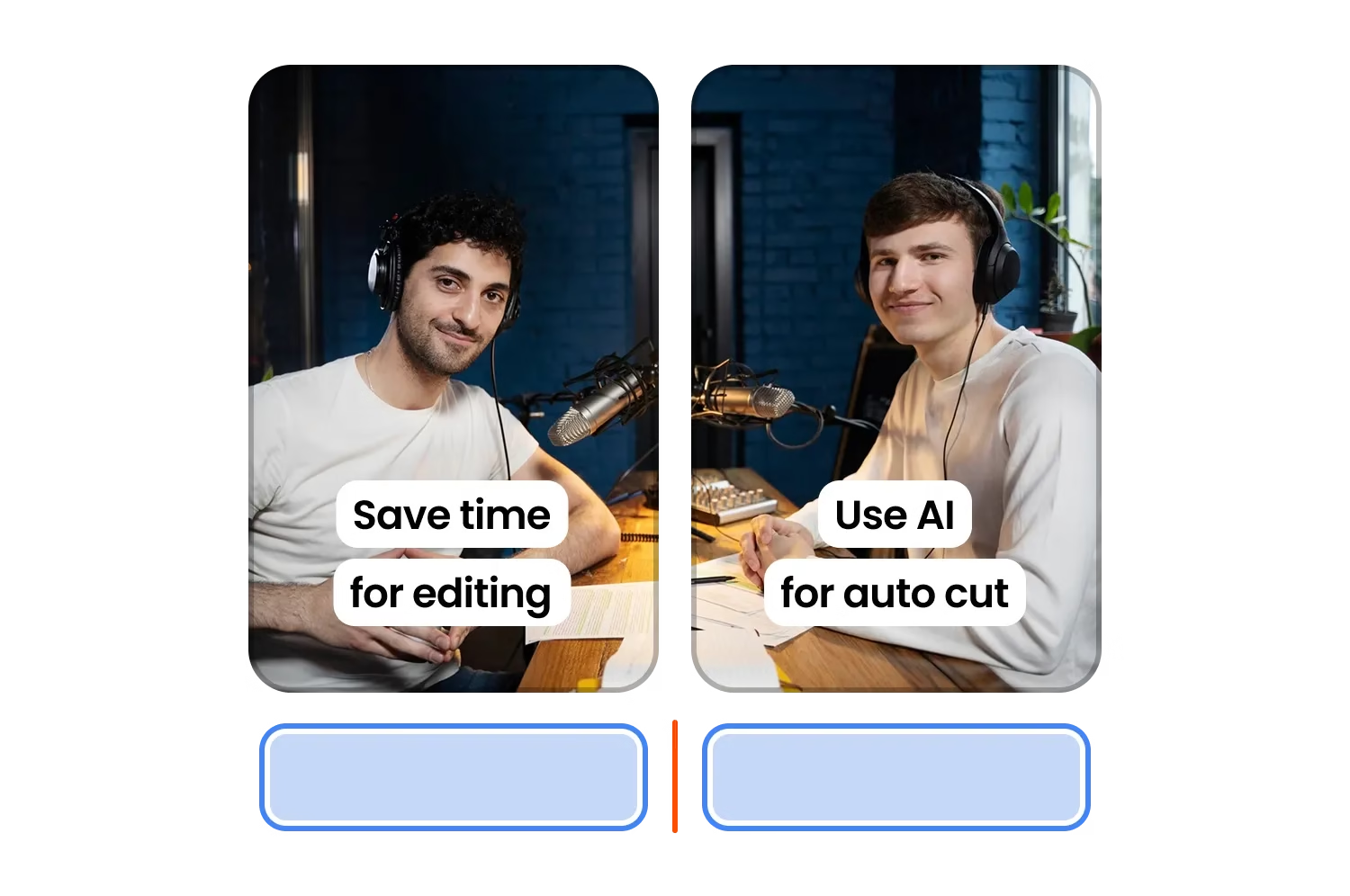

When I first heard of Submagic, I thought: “Okay, another AI video app.” But after using it for a few weeks, I realized there is something satisfying about how it streamlines short-form video creation.
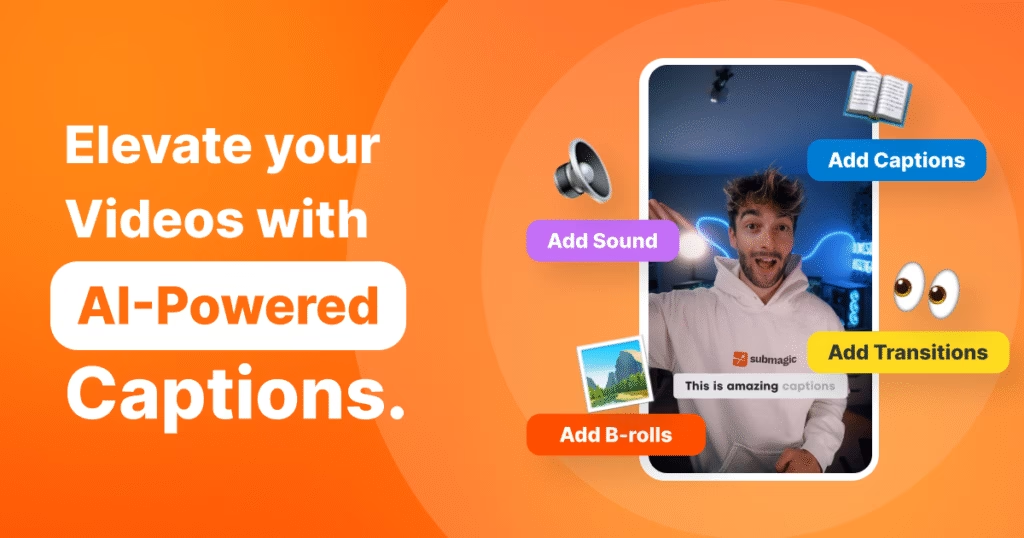
Broadly speaking, Submagic is a video editing and automation platform, optimized for creators, marketers, and teams who want fast, stylish video output. One of its core strengths is auto captions / subtitles and related AI tools (auto trimming, B-rolls, transitions, etc.).
If you want to try it yourself, you can check it out here: Submagic.
In this review, I’ll dig into what works, what doesn’t, who it’s ideal for, and whether it delivers value for its price.
Key Features & What They Mean for You
Here are the standout capabilities of Submagic and how they perform in real use:
| Feature | What It Does | My Experience / Notes |
|---|---|---|
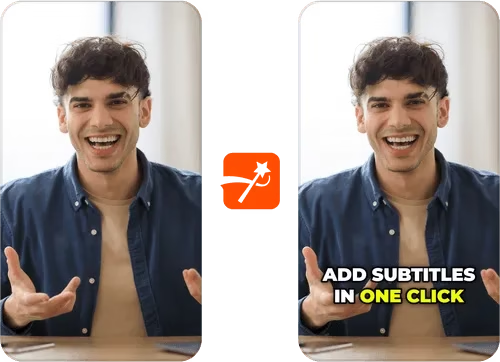
| AI Auto Captions / Subtitles | Automatically transcribes speech and syncs captions | Very accurate in many cases. Minor adjustments needed for names or slang. |
| Trimming & Removing Silences | Cut out pauses, filler words, or bad takes | Saves a lot of tedious editing time. |
| Animated Caption Styles & Customization | Pick fonts, colors, animations, caption themes | Great for branding, making videos “pop” |
| B-roll, Transitions, Zooms | Assistive visuals to boost engagement | Good for giving more polish to your video |
| Translation & Multi-Language Subtitles | Translate captions into other languages | Useful if you expand to multilingual audiences |
| Export & Quality Options | Export in 1080p, (some plans offer higher) | Good enough for most social platforms |
| Collaboration / Team / Templates | Share templates, assign users, manage projects | Works well for small teams or creators scaling up |
From user reviews, many praise how Submagic “makes video editing so much easier and faster” and how features like trimming before caption editing save switching between apps.
However, a few users have noted small drawbacks, like captions sometimes going off-screen or needing manual checks.
Pricing & Plans: What You Get for Your Money
Pricing can be confusing, so here’s how Submagic currently structures its plans (and whether it seems fair):
- Starter plan (annual billing) is around $12/month — ideal for casual creators, with limits on video count and length.
- Professional plan (annual) is about $23/month — expands your video limits, unlocks animated captions, better tools, more features.
- Business / Team / API plans go higher, unlocking 4K export, more templates, priority rendering, custom branding, and more.
One review notes that what you pay is much lower than hiring a video editor for captions and polishing.
From what I saw, for your average creator or small business making shorts and social videos, the Pro plan offers solid value. The Starter plan is good for trying the tool or very low volume work.
Performance & Usability: What Using It Feels Like
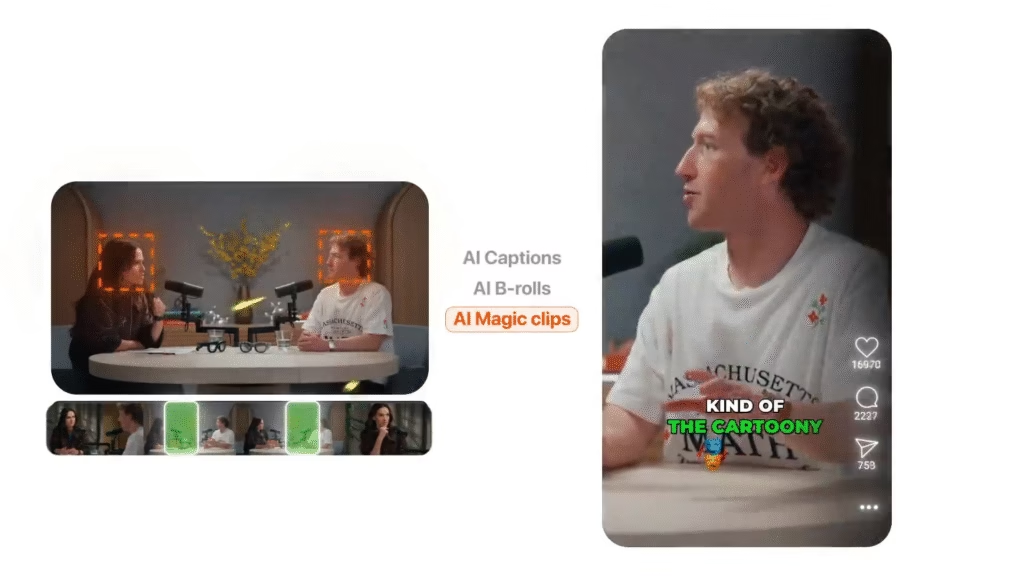
Here’s how the hands-on experience goes, and where it shines:
- User interface feels clean and beginner-friendly. You don’t need to be a pro editor to get started.
- Speed is good — uploading, captioning, trimming, previewing — things happen in a few seconds to minutes depending on your video length.
- Accuracy of captions is high, but not perfect. Expect to fix brand names, foreign words, or slang.
- Customization gives you enough control to make the video feel like “yours” (fonts, animations, colours).
- Export options are adequate for most needs — social media, YouTube, Instagram, etc.
- Support & Community: The support team often gets praised for responsiveness.
On the downside, I found:
- On some videos, captions might go off-screen or need repositioning.
- If you push past your plan limits (video count, length), you’ll hit roadblocks.
- Some of the advanced or premium features are locked behind higher tiers.
Pros & Cons (Balanced View)
Pros:
- Huge time saver — automates tedious parts of video editing.
- Strong captioning + transcription accuracy.
- Good styling & polish — helps make videos look professional.
- Multilingual and translation capabilities.
- Scales well for small teams or growing creators.
- Solid support and positive user reviews.
Cons / What You Should Watch Out For:
- Not perfect — you’ll always check and tweak some parts.
- Lower tiers have limits (video count, duration, export quality).
- For very complex video edits (special effects, multi-layer compositions), a full video editor may still be needed.
Who Should Use Submagic — And Who Might Skip It
Good for you if:
- You make regular short-form videos (Reels, TikToks, Shorts)
- You want to reduce editing time
- You’re not an expert editor, but want polished results
- You need captions/subtitles consistently
- You plan to expand into multiple languages
- You work with a small team or want to grow
Maybe skip (or wait) if:
- You do full cinematic editing or heavily layered effects
- You already have a powerful editing setup and team
- Your video volume is extremely low (so you won’t use many of the premium features)
Final Verdict
Overall, I find that Submagic delivers on what it promises: it helps creators and small teams produce cleaner, more polished short videos with less effort. The features are well thought out, the interface is user-friendly, and the automation saves real time.
It’s not flawless — you’ll still proofread, tweak, and sometimes hit plan limits — but for what it offers, it’s a strong value. For many creators, the Pro plan is a sweet spot where cost meets capability.
If you’re looking to up your video game, especially in social media content, give Submagic a try via this link. Use the trial, test your workflow, see how it fits your style, and decide if it’s right for your process.